Transferring files during remote desktop sessions is a daily necessity for millions of professionals, yet many organizations struggle with slow transfers, security vulnerabilities, and failed connections. Whether you’re moving essential client documents, sharing project files with team members, or backing up critical data, understanding the safest and most efficient file transfer methods protects your information while saving valuable time. This comprehensive guide explores four proven methods for secure file transfers during remote desktop sessions.
Understanding File Transfer Security Risks
File transfers present unique security challenges that many users overlook. When moving files between computers, data travels across networks where it can potentially be intercepted, corrupted, or accessed by unauthorized parties. Understanding these risks is the first step toward protecting your information.
Common file transfer security threats:
- Man-in-the-middle attacks intercept unencrypted data
- Malware hidden in transferred files is infecting systems
- Accidental data leaks when using unsecured transfer methods
- Compliance violations when handling sensitive information
- Data corruption during transfer is causing file damage
Organizations handling sensitive data—such as financial records, client information, healthcare data, or intellectual property—must prioritize secure transfer methods that include encryption and audit trails.
Native RDP Clipboard File Transfer
Windows Remote Desktop Protocol includes built-in clipboard functionality, allowing you to copy files on one computer and paste them on another. This method works seamlessly for occasional file transfers and requires no additional software configuration.
How to use RDP clipboard transfer:
- Enable clipboard redirection in Remote Desktop Connection settings
- Copy files on your local computer using Ctrl+C
- Switch to the remote desktop session
- Paste files using Ctrl+V in the desired location
- Wait for the transfer to complete before disconnecting
Advantages and limitations:
- Extremely simple with no setup required
- Works well for small files under 100MB
- Limited speed compared to dedicated methods
- Can be unreliable for large files or multiple items
- No progress indicator for ongoing transfers
This method is suitable for quick transfers of documents and spreadsheets, but struggles with large files, such as videos or complex databases.
Mapped Drives in Remote Desktop
Drive mapping makes local drives appear as network drives within your remote desktop session. This approach provides familiar file explorer functionality and works well for frequent file transfers between the same computers.
Setting up mapped drives:
- Open Remote Desktop Connection and click “Show Options.”
- Navigate to the “Local Resources” tab
- Click “More” under Local devices and resources
- Check boxes for drives you want to access remotely
- Connect to complete the setup
Best practices for mapped drives:
- Only map drives containing files you need to transfer
- Unmount drives when not actively transferring files
- Use mapped drives on trusted networks only
- Monitor transfer speeds and disconnect if unusually slow
- Keep antivirus software active on both computers
Mapped drives are ideal for ongoing projects that require frequent file synchronization between locations. However, they can expose your entire local drive to the remote system, creating potential security concerns.
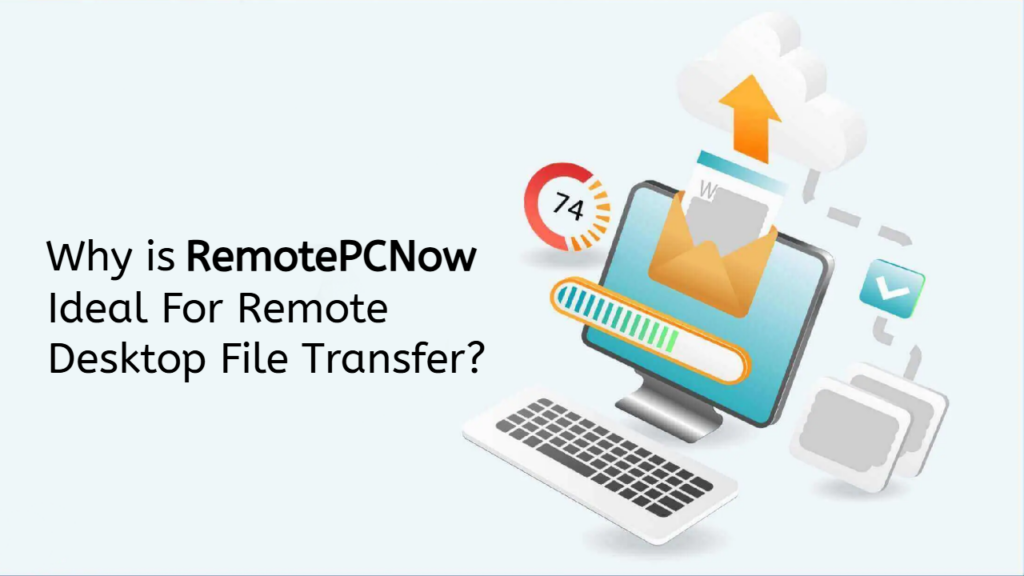
Using RemotePCNow’s File Transfer Feature
Dedicated remote access software, such as RemotePCNow, includes purpose-built file transfer capabilities designed for enhanced security and efficiency. These features typically provide better performance and security than native Windows methods.
RemotePCNow file transfer advantages:
- Drag-and-drop interface for intuitive operation
- Automatic encryption protects data during transfer
- Resume capability if connections drop mid-transfer
- Transfer queue management for multiple files
- Detailed transfer logs for compliance documentation
How to transfer files with RemotePCNow:
- Establish a remote connection to the target computer
- Open the file transfer interface within the application
- Select files or folders from either computer
- Drag files to the destination computer location
- Monitor progress and verify successful completion
Professional remote access solutions prioritize security with automatic encryption, preventing data interception even on unsecured networks. Starting at $9.95 per year, RemotePCNow offers enterprise-grade file transfer capabilities at an affordable price point.
Cloud Storage Integration
Cloud storage services, such as OneDrive, Google Drive, or Dropbox, offer an alternative approach to file transfers. Data Upload files to cloud storage from one computer and then download them on another computer.
Cloud storage transfer workflow:
- File uploads to your cloud storage account
- Access the cloud service from the remote computer
- Download files to the desired location
- Delete uploaded files if they contain sensitive data
- Verify file integrity after download
Cloud storage considerations:
- Requires a reliable internet connection on both ends
- Upload and download times double the transfer duration
- Storage space limitations may restrict large transfers
- Subscription costs for adequate storage capacity
- Data temporarily resides on third-party servers
The cloud storage works well when both computers can’t connect directly or when you need to transfer files to multiple locations simultaneously.
Security Best Practices for File Transfers
Regardless of which transfer method you choose, implementing security best practices protects your data and ensures compliance with organizational policies.
Essential security measures:
- Always use encrypted connections (HTTPS, TLS, or built-in encryption)
- Scan all transferred files with antivirus software before opening
- Verify file integrity using checksums for critical documents
- Delete temporary copies after successful transfers
- Maintain audit logs documenting all file movements
- Use strong authentication before allowing file transfers
Never transfer sensitive files over public Wi-Fi without VPN protection. The convenience isn’t worth the security risk.
Transfer Speed Optimization Tips
Slow file transfers waste time and reduce productivity. Several factors influence transfer speeds, and understanding them helps optimize performance.
Speed optimization strategies:
- Close unnecessary applications consuming bandwidth
- Use wired Ethernet connections instead of Wi-Fi when possible
- Compress large files before transferring to reduce size
- Schedule large transfers during off-peak hours
- Upgrade the internet connection if consistently experiencing slow speeds
- Reduce remote desktop display quality during large transfers
Network congestion significantly impacts transfer speeds. A 100MB file might transfer in seconds on a direct gigabit connection, but require minutes over a congested internet connection.
Handling Large Files Over 2GB
Transferring files exceeding 2GB requires special consideration, as some methods impose size limitations or experience reliability issues with large files.
Large file transfer strategies:
- Split files into smaller chunks using compression software
- Use dedicated file transfer protocols (FTP/SFTP) for maximum efficiency
- Consider physical transfer (external drive) for massive datasets
- Verify transfer completion with file size comparison
- Test file integrity before deleting original copies
Video editors, architects, and engineers regularly transfer multi-gigabyte files. Investing in robust transfer solutions prevents hours of wasted time from failed transfers.
Troubleshooting Failed File Transfers
Transfer failures frustrate users and delay projects. Understanding common causes helps you resolve issues more quickly.
Common failure causes and solutions:
- Insufficient disk space: Check available storage before transferring
- Connection interruptions: Use methods supporting the transfer of a resume
- Permission errors: File- Verify you have write access to the destination
- Antivirus interference: Temporarily disable or add exceptions
- Network timeouts: Increase timeout settings in the connection software
When transfers fail repeatedly, test with smaller files first to determine whether the problem is related to file size, network stability, or software configuration.
Connect with RemotePCNow
Looking for more file transfer tips and remote work solutions? Follow us on Facebook, Instagram, LinkedIn, and X for tutorials, productivity hacks, and security best practices. Do you need help choosing the proper file transfer solution for your organization? Visit our Contact Us page—our team can recommend the best approach for your specific requirements.